Introduction
Page Settings control your site's global appearance, branding, and behavior. You only need to configure these once after installation.
Access: Go to /admin → Pages → Site Settings
Currency
Set how prices display across your site:
- Currency Code: Select from GBP, USD, EUR, CAD, or AUD (used for Stripe payments)
- Currency Symbol: Choose £, $, €, etc. (appears before all prices)
Color Theme
Customize your brand colors using the color pickers. Changes apply immediately:
- Primary Color: Main brand color (buttons, headers)
- Secondary Color: Supporting brand color
- Accent Color: Highlights and special elements
- Link Color: Default link color
- Link Hover Color: Link color when hovering
All colors use hex format (e.g., #0f172a). Click the color box to open a color picker.
Homepage Mode
Choose which page visitors see at your root URL:
- Shop Homepage: Shows your shop with products
- Pages Homepage: Shows a custom homepage built with page blocks
Homepage Content
Toggle what appears on your homepage:
- Show featured products on homepage: Displays 4 featured products
- Show blog posts on homepage: Displays your 3 most recent posts
Branding
Set your site identity:
- Business Name: Appears in the navigation bar and footer
- Logo Image: Upload your logo (displayed in the header)
Site Identity
Configure core site information:
- Site URL: Your full domain (e.g., https://yourdomain.com) - used for SEO and canonical URLs - see Custom Domain Setup Here
- Support Email: Contact email for customer inquiries
- Site Author: Your name or business name (used in meta tags)
Footer
Add social media links:
- Social Link 1: Name and URL (e.g., "Facebook" + link)
- Social Link 2: Name and URL (e.g., "Twitter" + link)
- Copyright Text: Custom footer text (e.g., "© 2026 Your Business")
Newsletter (Optional)
- Newsletter Embed HTML: Paste your newsletter service's embed code (Buttondown, Mailchimp, etc.)
Default SEO
Set fallback SEO values for pages without custom settings:
- Default Meta Title: Fallback page title
- Default Meta Description: Fallback description
- Default Meta Keywords: Comma-separated keywords
- OG Image: Default social sharing image (1200x630px recommended)
- Facebook App ID: Optional Facebook integration
Tip: After saving, visit your site to see changes immediately. Colors update in real-time without rebuilding containers.
The video that goes through how to set up your site settings is available here
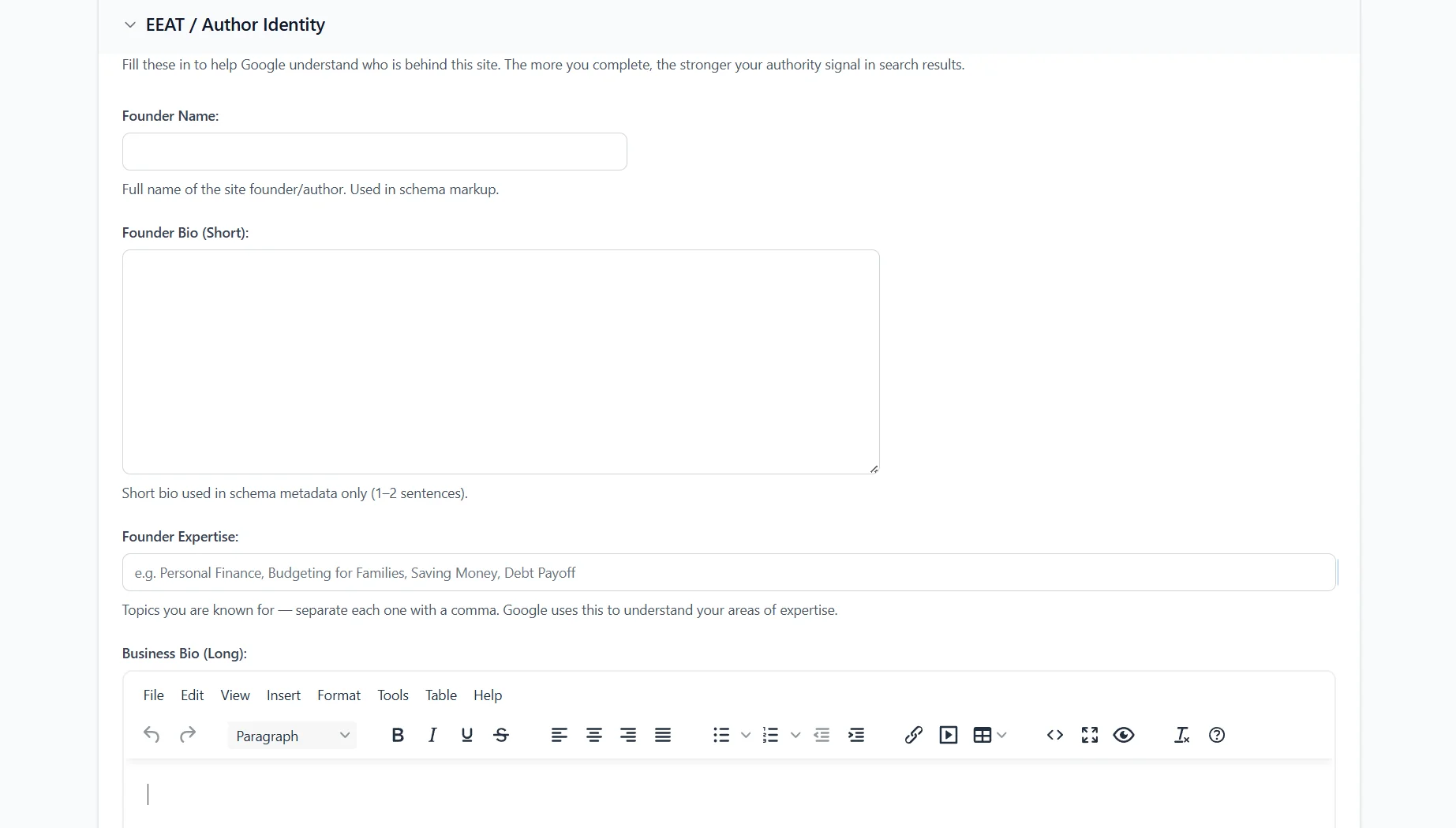
The Djangify E-E-A-T Upgrade
From May 2026 there is now a new section that has been added to the Site Settings area. Before Google ranks your store or sends you organic traffic, its algorithms now ask one critical question: Who made this product, and why should a customer trust them?
This is the area where you provide the answers to that question. You can include your bio, your expertise, links to where Google can find you and other information to show the real person behind the business.
ALSO SEE: